

Your Banking Travel Companion
Our Wildfire Personal Online Banking and Mobile App have everything you need to manage your finances from anywhere.
All locations will be closed on Wednesday, November 11 in observance of Veteran's Day. Our ATMs and Online Banking are available 24/7.

Our Wildfire Personal Online Banking and Mobile App have everything you need to manage your finances from anywhere.
The Dashboard is the first screen you'll see when signing in. It provides a convenient snapshot of your finances and allows you to customize which sections appear and the order in which they are displayed.
1. Sign in to Wildfire Online Banking.
2. On the Dashboard screen, select "Customize Dashboard" at the top of the screen.
3. The default Dashboard sections include:
- Accounts
- Latest Transactions
- Cards
- Money In and Out
- Budgets
- Top Spend
4. Uncheck the sections you don't want to view and click "Update".
5. Click and drag any section to change the order and select "Update".
Changes made to Dashboard will reflect immediately.
To help protect your account, Wildfire uses one-time passcodes (OTPs) to verify your identity when signing in or completing certain transactions. You can choose to receive your one-time passcode by:
- Text message (SMS)
- Email
Please note: Automated phone calls are no longer available as a method for receiving one-time passcodes. If you're unable to receive your passcode, please verify that Wildfire has your current mobile number and email on file. Please contact Wildfire to update your information.
The Dashboard is now the default Home page you’ll see when signing in with Wildfire Online Banking. It provides a convenient snapshot of your finances, giving you quick access to your accounts, recent activity, and other helpful financial insights.
1. Total Deposits: The combined balance of your visible deposit accounts. (Hidden accounts not included in the balance.)
2. Accounts: First five accounts or favorite accounts and their balances. (View more by selecting Accounts.)
3. Latest Transactions: Your most recent account activity.
4. Cards: Quick access to manage your Wildfire debit and credit cards.
5. Money In & Out: An overview of your income and spending.
6. Top Spend: A summary of where you're spending the most.
7. Budgets: A snapshot of your current budget progress.
Dashboard also includes a Quick Actions sidebar that provides one-click access to many of your most frequently used banking tools, including making a payment, managing accounts, updating notifications, finding branches, and statements.
Custom categories make it easier to organize and track your spending. You can update transaction categories or create your own personalized categories directly in the Wildfire Online Banking.
1. Sign in to Wildfire Online Banking. and select a transaction from an account or loan.
2. Select the pencil icon next to the current category name.
3. Select "+ Add Category" at the bottom of the page (or select the + icon at the top of the page).
4. Enter your new category name and choose an icon.
5. Select "Save" to create your custom category.
You can also use this menu to update an existing transaction category by selecting one of the available default categories.
If you've forgotten your username or password, you can recover it from the Wildfire Online Banking login page.
1. Visit the Wildfire website and select "Login" in the upper-right corner.
2. Under Personal, select "Login".
3. On the login page, select "Problems logging in?".
4. Choose to recover your username or password, then follow the prompts to verify your identity and complete the process.
Once complete, you can sign in to both Wildfire Online Banking and Mobile App using your updated login credentials.
For your security, your Online Banking account will be locked after three unsuccessful login attempts. Once your account is locked, you will no longer be able to use the Forgot Password feature to reset your password.
If this happens, please contact Wildfire Credit Union during normal business hours, and a member of our team will be happy to help unlock your Online Banking.
Customize your notification preferences in the Wildfire Online Banking to stay informed about your account activity. Choose which notifications you receive and how you'd like to receive them by text messages and emails.
1. Sign in to Wildfire Online Banking.
2. Select "Self Service" at the top of the page.
3. Select "Manage Notifications".
4. Choose the Account you'd like to manage notifications for, then select the notification type.
5. Use the toggle to turn notifications On or Off, and select your preferred delivery method.
You can update your notification preferences at any time to make sure you receive the alerts that matter most to you.
Wildfire's Bill Pay service makes it easy to pay your bills from one convenient place. Make payments by scheduling one-time or recurring payments to businesses and other payees directly through Wildfire Online Banking.
1. Sign in to Wildfire Online Banking.
2. Select "Move Money" from the top navigation, then choose "Bill Pay Dashboard".
3. Select an existing payee from the list to pay.
4. To add a new payee, select "Add Payee", then search for the company or business you'd like to add.
5. Enter the "Send Date" and "Payment Amount".
6. Choose the "Pay From" account and select the desired Frequency.
7. Select "Continue," review the payment details, and then select "Pay" to submit your payment.
Please note: Some payments are sent electronically, while others are mailed as paper checks. Payments sent by mail are identified with an envelope icon in Bill Pay. These payments will be deducted from your Wildfire checking account once the check is presented and clears through the receiving institution.
You can order checks for your Wildfire checking account directly through Wildfire Online Banking.
1. Sign in to Wildfire Online Banking.
2. Select "Self Service" from the top navigation, then choose "Order Checks".
3. Select the checking account you'd like to order checks for, then choose "Submit".
4. A new browser window will open, taking you to our secure check ordering website to complete your order.
If you prefer, you can also contact Wildfire Credit Union for assistance with ordering checks or place your order directly through our portal website here: Order Checks
You can update the phone number used for text message (SMS) verification through Wildfire Online Banking.
1. Sign in to Wildfire Online Banking.
2. Select "Self Service" from the top navigation, then choose "My Profile".
3. Under Profile, scroll to the Phone Number section.
4. Select the three dots next to SMS.
5. Enter your new mobile phone number, then select "Save Changes".
Please note: Only one mobile number can be designated to receive SMS one-time passcodes (OTPs) for your account.
Customize how your accounts appear in Wildfire Online Banking by hiding accounts you don't want displayed or giving your accounts personalized nicknames.
To hide an account:
1. Sign in to Wildfire Online Banking.
2. From the My Accounts page, select "Manage Accounts".
3. Locate the account you'd like to hide.
4. Use the toggle next to the account to hide or unhide it. When the toggle is turned off, the account will no longer appear in your account list or in Dashboard.
To nickname an account:
1. From the Manage Accounts page, locate the account you'd like to rename.
2. Select the pencil icon next to the account.
3. Enter your preferred account nickname, then select the checkmark to save your changes.
Card controls allow you to temporarily lock or unlock your Wildfire debit or credit card directly from Wildfire Online Banking.
1. Sign in to Wildfire Online Banking.
2. Select "Self Service" from the top navigation.
3. Choose "Manage Cards" to view your cards.
4. Select "Lock Card" below the card image for the card you'd like to temporarily disable.
5. To restore card access, select "Unlock Card" below the card image.
Please note: Locking your card is a temporary control that can help prevent transactions if you've misplaced your card or need additional security. If your card is lost or stolen, please contact Wildfire immediately.
You can activate your new Wildfire debit or credit card directly from Wildfire Online Banking.
1. Sign in to Wildfire Online Banking.
2. Select "Self Service" from the top navigation, then choose "Manage Cards".
3. Select the inactive card you'd like to activate.
4. Click "Activate Card" and follow the on-screen prompts.
After activating your card, you'll need to set or update your PIN by calling 1.866.304.8760
- Press 1 to set your PIN for the first time.
- Press 3 to change an existing PIN.
To get started using the Wildfire Mobile App, you'll first need to enroll in Wildfire Online Banking.
1. Visit the Wildfire website and select "Login" in the upper-right corner.
2. Under Personal, select "Enroll".
3. Enter your 8-digit account number and the requested personal information. (Use your email and phone number currently on file with Wildfire.)
4. Select "Continue" and create a unique username and password that meets requirements.
5. Review the Terms and Conditions, check "Accept Terms and Conditions," and select "Create".
6. Sign in using your new username and password.
7. Complete the verification process by selecting your preferred verification method, entering the verification code you receive, and verifying your email address.
Once your enrollment is complete, you'll be ready to access both Wildfire Online Banking and the Wildfire Mobile App.
You can manage your statement delivery preferences through Wildfire Online Banking.
1. Sign in to Wildfire Online Banking.
2. Select "Self Service" from the top navigation, then choose "My Profile."
3. Select "Statement Options."
4. Use the Paper Statements toggle to enable or disable paper statements.
Please note: This feature is not available in the Wildfire Mobile App.
You can access your electronic account statements anytime through Wildfire Online Banking.
1. Sign in to Wildfire Online Banking.
2. Select "Self Service" from the top navigation, then choose "Account Statements."
3. Locate the statement you'd like to access.
4. Select "Preview" to view the statement or "Download" to save a copy to your device.
Statements include account statements, loan and credit card statements, and tax statements.
You can link accounts from other financial institutions to transfer funds between your Wildfire accounts and external accounts through our Online Banking.
1. Sign in to Wildfire Online Banking.
2. Select "My Accounts" from the top navigation, then choose "External Accounts".
3. Select "+ Link External Account".
4. Enter your external account information, then select "Connect".
5. Wait 1–3 business days for two small verification deposits to appear in your external account. Verify the micro deposit amounts at your other financial institution.
6. Return to External Accounts in Wildfire Online Banking, enter the micro deposit amounts, and select "Activate" to complete the verification process.
Once your external account is verified, you'll be able to use it for eligible transfers between your Wildfire account and your other financial institution.
You can send money to friends, family, and other trusted contacts directly through Wildfire Online Banking using the person-to-person (P2P) transfer:
1. Sign in to Wildfire Online Banking.
2. Navigate to "Move Money" and select "P2P".
3. Select "Add" in the People section to add a recipient. Enter their name and email or mobile number, then select "Save."
4. If you'd like to send money using your Wildfire debit card, select "Add" in the Member Cards section.
5. To send money, in the To field, select the recipient you'd like to pay.
6. In the From field, choose the account or debit card you'd like to use.
7. Enter the amount you'd like to send.
8. Create a security question and answer that the recipient will use to verify their identity before receiving the funds.
9. Review and accept the Terms & Conditions, then select a Send Date and Frequency.
10. Select "Send." The recipient will receive a notification by email or text message with instructions to claim the payment.
Please note: P2P is limited to 5 transactions processed per day.
To make a transfer between your Wildfire accounts, loans, and credit cards through Online Banking:
1. Sign in to Wildfire Online Banking.
2. Select "Move Money" from the top navigation, then choose "Payments & Transfers".
3. In the "From" field, select the account or loan you'd like to transfer funds from.
4. In the "To" field, select the account or loan you'd like to transfer funds to.
5. Enter the Transfer Amount, then choose the Date and Frequency for your transfer.
6. Select "Continue," review the transfer details, and then select "Submit" to complete your transfer.
Once submitted, your transfer will be processed according to the date and frequency you selected.
The Dashboard is the first screen you'll see when signing in. It provides a convenient snapshot of your finances and allows you to customize which sections appear and the order in which they are displayed.
1. Open the Wildfire Mobile App and select "Customize Dashboard" at the bottom of the screen.
2. Add, remove, or reorder sections to personalize your Dashboard.
4. Hit the red minus button for the sections you don't want to view and click "Update".
5. Click and drag any section to change the order and select "Update".
Changes made to Dashboard will reflect immediately.
The Dashboard is now the default Home page you’ll see when signing into the Wildfire Mobile App. It provides a convenient snapshot of your finances, giving you quick access to your accounts, recent activity, and other helpful financial insights.
1. Total Deposits: The combined balance of your visible deposit accounts. (Hidden accounts not included in the balance.)
2. Accounts: First five accounts or favorite accounts and their balances. (View more by selecting Accounts.)
3. Latest Transactions: Your most recent account activity.
4. Quick Actions: Make a transfer or mobile deposit.
5. Top Spend: A summary of where you're spending the most.
6. Cash Flow: An overview of your income and spending.
7. Budgets: A snapshot of your current budget progress.
Dashboard order and widgets can be customized.
You can customize which accounts appear in your account list by hiding accounts you don't want displayed.
1. Open the Wildfire Mobile App and select "Accounts."
2. Scroll to the bottom of the page and select "Edit Accounts."
3. Use the toggle next to each account to turn visibility On or Off.
Accounts turned off will no longer appear in your account list until you choose to make them visible again.
You can personalize your accounts and loans by updating the account name displayed in the Wildfire Mobile App.
1. Open the Wildfire Mobile App and select the account or loan you'd like to update.
2. Select "Details".
3. Select the pencil icon next to Account Name.
4. Enter your preferred account name and save your changes.
To rename a credit card or line of credit, select "More" before clicking "Details".
Custom categories make it easier to organize and track your spending. You can update transaction categories or create your own personalized categories directly in the Wildfire Mobile App.
1. Open the Wildfire Mobile App and select a transaction from an account or loan.
2. Select the pencil icon next to the current category name.
3. Select "+ Add Category" at the bottom of the page (or select the + icon at the top of the page).
4. Enter your new category name and choose an icon.
5. Select "Save" to create your custom category.
You can also use this menu to update an existing transaction category by selecting one of the available default categories.
You can mark your most frequently used accounts as Favorites to make them easier to find. Favorite accounts will appear at the top of your Accounts page and in the Dashboard.
1. Navigate to My Accounts > Account Summary.
2. Select the star next to each account you'd like to favorite.
You can choose multiple favorite accounts, and your favorites will be displayed first for easier access.
For your security, the Wildfire Mobile App will temporarily lock access after too many unsuccessful login attempts.
If you forgot your username or password, you can attempt to recover your credentials by selecting "Login > Forgot Credentials" and choosing "I forgot my password" or "I forgot my username."
If you are locked out of the app after multiple unsuccessful login attempts, please contact Wildfire Credit Union during normal business hours for assistance with unlocking your account.
You can customize your notification preferences in the Wildfire Mobile App to stay informed about your account activity. Choose which notifications you receive and how you'd like to receive them, including push notifications, text messages, emails, or in-app notifications.
1. Open the Wildfire Mobile App and select "Help" at the top of the screen.
2. Select "Manage Notifications" at the top of the page.
3. Choose the Account you'd like to manage notifications for, then select the notification type.
4. Use the toggle to turn notifications On or Off, and select your preferred delivery method.
You can update your notification preferences at any time to make sure you receive the alerts that matter most to you.
Wildfire Mobile Bill Pay makes it easy to schedule payments to businesses and other payees directly from your mobile device.
1. Open the Wildfire Mobile App and select "Move Money" at the bottom of the screen.
2. Select "Bill Pay Dashboard".
3. Select an existing payee from the list to pay.
4. To add a new payee, select "Add Payee", then search for the company or business you'd like to add.
5. Select the "Pay From" Account and choose the payment Frequency.
6. Select "Continue," review your payment details, and then select "Pay" to submit your payment.
Please note: Some Bill Pay payments are sent electronically, while others are mailed as paper checks. Payments sent by mail are identified with an envelope icon in Bill Pay. These payments will be deducted from your Wildfire checking account once the check is presented and clears through the receiving institution.
You can mark your most frequently used accounts as Favorites to make them easier to find. Favorite accounts will appear at the top of your Accounts page and in the Dashboard.
1. Open the Wildfire Mobile App and select the account or loan you'd like to favorite under Accounts.
2. Select the star icon in the top-right corner of the transaction page to mark the account as a favorite.
3. To remove an account from your favorites, simply select the star icon again.
You can choose multiple favorite accounts, and your favorites will be displayed first for easier access.
You can access your electronic account statements anytime through the Wildfire Mobile App.
1. Open the Wildfire Mobile App and select the share or loan you'd like to view under Accounts.
2. Select the More icon (three dots), then choose Statements.
3. Select the statement you'd like to view.
Statements include account statements, loan and credit card statements, and tax statements.
You can send money to friends, family, and other trusted contacts directly through the Wildfire Mobile App using person-to-person (P2P) transfers.
1. Open the Wildfire Mobile App and select "Move Money" at the bottom of the screen.
2. Select "P2P" from the menu.
3. Select "Add" in the People section to add a recipient. Enter their name and email or mobile number, then select "Save."
4. If you'd like to send money using your Wildfire debit card, select "Add" in the Member Cards section.
5. To send money, in the To field, select the recipient you'd like to pay.
6. In the From field, choose the account or debit card you'd like to use.
7. Enter the amount you'd like to send.
8. Create a security question and answer that the recipient will use to verify their identity before receiving the funds.
9. Review and accept the Terms & Conditions, then select a Send Date and Frequency.
10. Select "Send." The recipient will receive a notification by email or text message with instructions to claim the payment.
You can easily transfer funds between your Wildfire accounts, loans, and credit cards directly from the Wildfire Mobile App.
1. Open the Wildfire Mobile App and select "Move Money" at the bottom of the screen.
2. Select "Make a Transfer".
3. In the From field, select the account or loan you'd like to transfer funds from.
4. In the To field, select the account or loan you'd like to transfer funds to.
5. Enter the transfer Amount and select the transfer Frequency under the When field.
6. Select "Continue to Review," review the transfer details, then select "Confirm and Transfer" to complete your transfer.
Once submitted, your transfer will be processed according to the date and frequency you selected.
Card controls allow you to temporarily lock or unlock your Wildfire debit or credit card directly from the Wildfire Mobile App.
To lock your card:
1. Open the Wildfire Mobile App and select "Cards" at the top of the screen.
2. Swipe to the card you'd like to manage.
3. Select the toggle below the card image to turn Lock Card on.
To unlock your card:
1. Return to the card in the Cards section.
2. Select the toggle again to turn Lock Card off and restore access to your card.
Please note: Locking your card is a temporary control that can help prevent transactions if you've misplaced your card or need additional security. If your card is lost or stolen, please contact Wildfire immediately.
You can activate your new Wildfire debit or credit card directly through the Wildfire Mobile App.
1. Open the Wildfire Mobile App and select "Cards" at the top of the screen.
2. Swipe to find the inactive card you'd like to activate.
3. Select "Activate Now" in the blue box below the card image.
4. After activating your card, set or update your PIN by calling 1.866.304.8760
- Press 1 to set your PIN for the first time.
- Press 3 to change an existing PIN.
If you deposit a check Monday – Friday between 9:00 A.M. - 5:00 P.M. ET funds will be available that day based on our Funds Availability of Deposits.
If you deposit a check Monday – Friday after 5:00 P.M. ET, Saturday, Sunday or a Holiday, funds will be available the next business day based on our Funds Availability of Deposits.
The following items are NOT eligible for Mobile Deposit:
Possible reasons for a deposit being declined include:
Make sure your check image follows these conditions:
Step 1: At a merchant card reader, look for the "Contactless or Google Pay® logo".
Step 2: Swipe down from top of your screen and tap "Wallet" or open "Google Wallet" app.
Step 3: "Choose card" for your purchase.
Step 4: Hold your phone above card reader when prompted, your purchase is complete once you see the "Checkmark".
View tutorial video: How To Use Google Pay
Step 1: Select "Wallet" on your Samsung® phone.
Step 2: Select "Add" and tap "Payment cards".
Step 3: "Scan" your Wildfire card, or "Add card manually".
Step 4: Follow the instructions for "Card Information" and "Verification" setup.
View tutorial video of setup process: How To Setup Samsung Pay
Step 1: At a merchant card reader, look for the "Contactless or Apple Pay® logo".
Step 2: "Double click" the side button on your iPhone® or open the "Wallet App".
Step 3: "Choose card" and authenticate your purchase with "Face ID, Passcode, or Touch ID".
Step 4: Hold your phone above card reader when prompted, your purchase will be complete once screen says "Done".
View tutorial video: How To Use Apple Pay
Step 1: Download and install the "Google Wallet" app on your phone.
Step 2: Open Google Wallet and click "+ Add to Wallet" in bottom right corner. Tap "Payment Card".
Step 3: "Take a Photo" of your Wildfire card or select "Enter Details Manually".
Step 4: Follow the instructions for "Card Information" and "Verification" setup.
Step 5: You may need to "Turn on NFC" from your device settings to use from home screen.
View tutorial video of setup process: How To Setup Google Pay
Step 1: Open the "Wallet App" on your iPhone®.
Step 2: Tap the "Add icon (+)" at the top of your screen, then select "Debit or Credit Card".
Step 3: Touch your Wildfire Card on the back of your iPhone to "Scan" or click "Enter Card Details Manually".
Step 4: Follow the instructions for "Card Verification" with Wildfire to complete setup.
View tutorial video of setup process: How To Setup Apple Pay
Step 1: At a merchant card reader, look for the "Contactless or Samsung Pay® logo".
Step 2: "Swipe Up" from bottom of your screen or open "Samsung Wallet" app.
Step 3: "Choose card" for your purchase and "complete your verification".
Step 4: Hold your phone above card reader when prompted, your purchase is complete once you see the "Checkmark".
View tutorial video: How To Use Samsung Pay

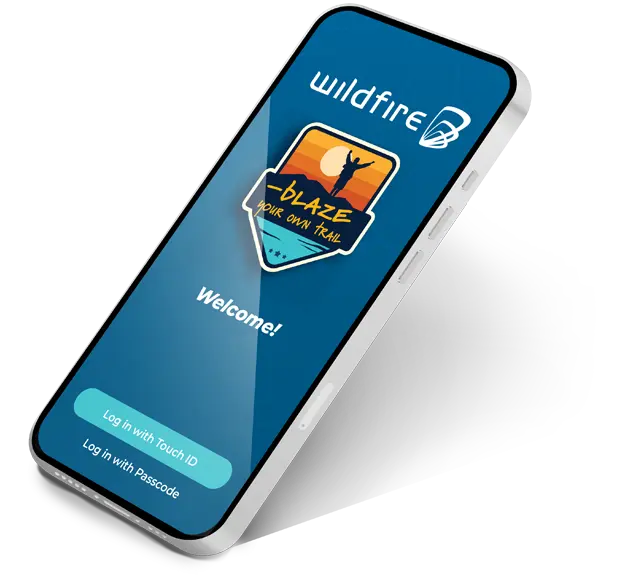
Manage your finances on the go.
Enroll in Personal Online Banking using our website, and then download and use the app today!